
Tailscale Authentication
Tinyauth has support for detecting your Tailscale connection and automatically logging you in with your Tailscale identity. This is made possible using the Tailscale API.
Requirements
Section titled “Requirements”- A Tailscale account
- A Tinyauth instance
You will need your proxy to correctly forward the client IP to Tinyauth for the Tailscale detection
to work. This differs from proxy to proxy, but usually you will need your proxy container to run
with network_mode: host in Docker.
In case you are using K3S (and possibly other Kubernetes deployments that use Traefik+MetalLB) you can use the following Helm chart config for Traefik to forward the correct client IP to your applications (including Tinyauth):
apiVersion: helm.cattle.io/v1kind: HelmChartConfigmetadata:  name: traefik-config  namespace: kube-systemspec:  valuesContent: |-    service:      spec:        externalTrafficPolicy: Local
    entryPoints:      web:        address: ':80'        forwardedHeaders:          trustedIPs:            - 10.42.0.0/24      websecure:        address: ':443'        forwardedHeaders:          trustedIPs:            - 10.42.0.0/24
You can check if Tinyauth is receiving the correct client IP by visiting it and checking the
client_ip section in the info logs.
Get the Tailscale API token
Section titled “Get the Tailscale API token”Before configuring Tinyauth, you need to obtain your Tailnet ID and an API token from Tailscale. This can be done by visiting the Tailscale admin console. The Tailnet ID is the first thing you see in the page.
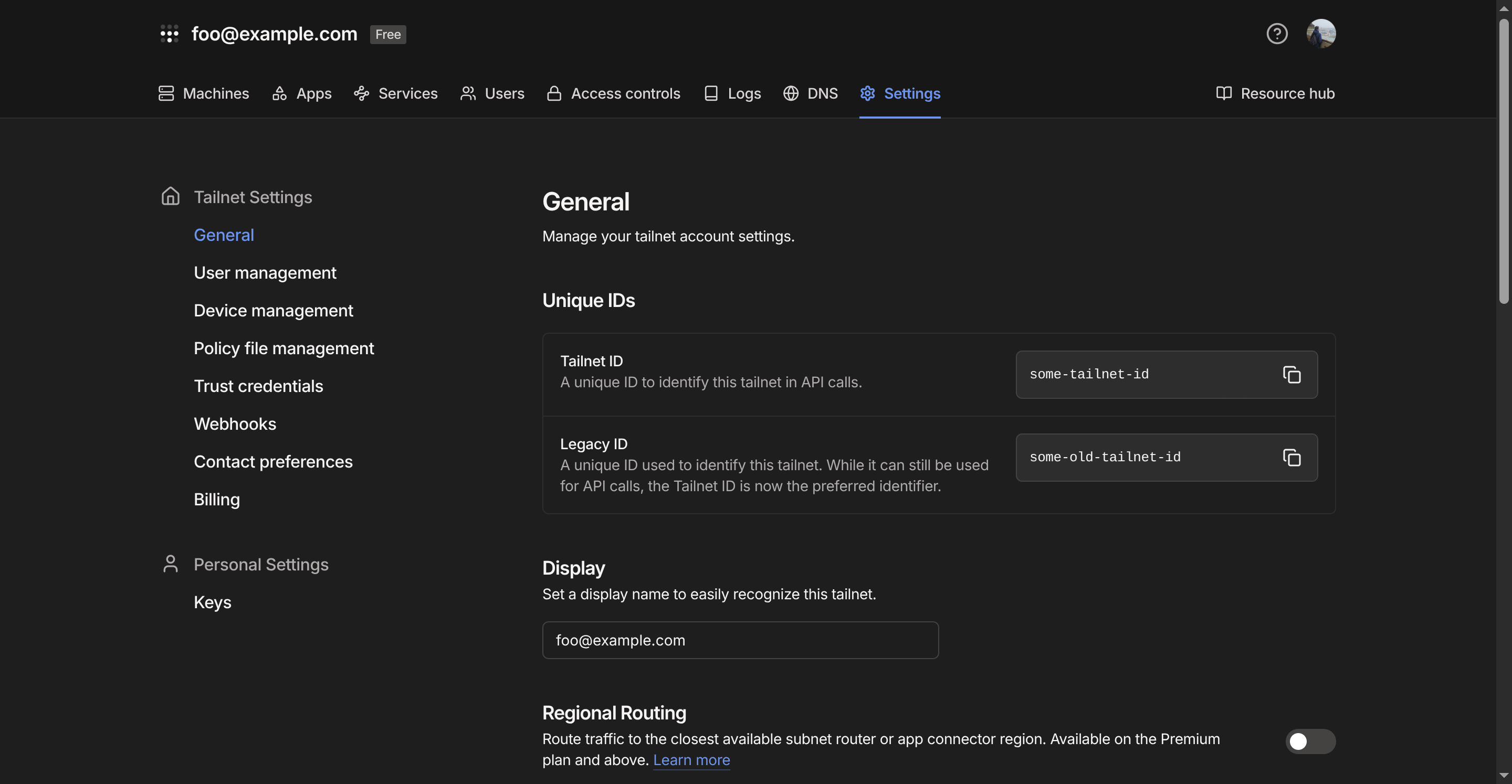
Then, you can generate an API token in the keys page.
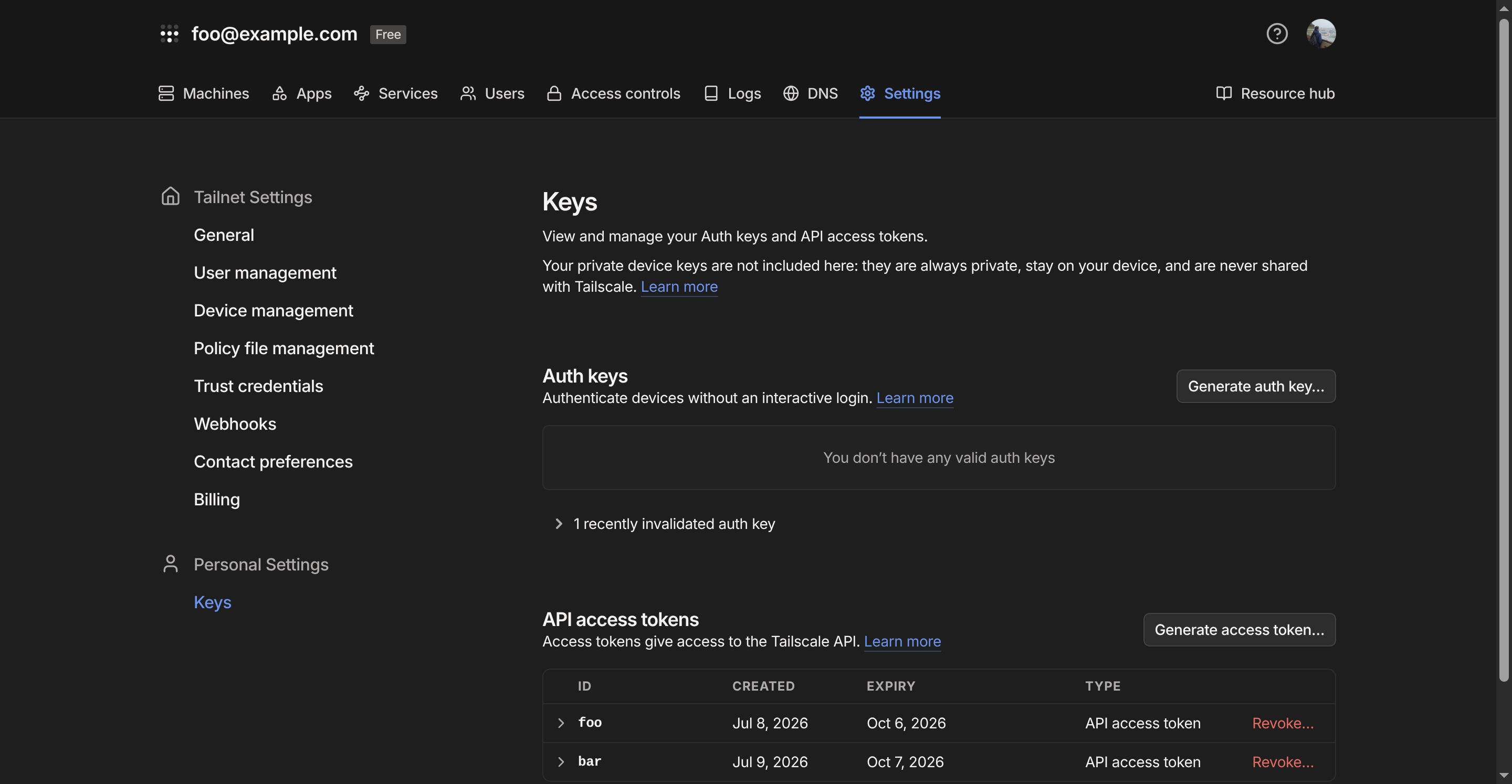
There click the Generate access token button, give it a name and click Generate access token again. You should then be greeted by the following page.
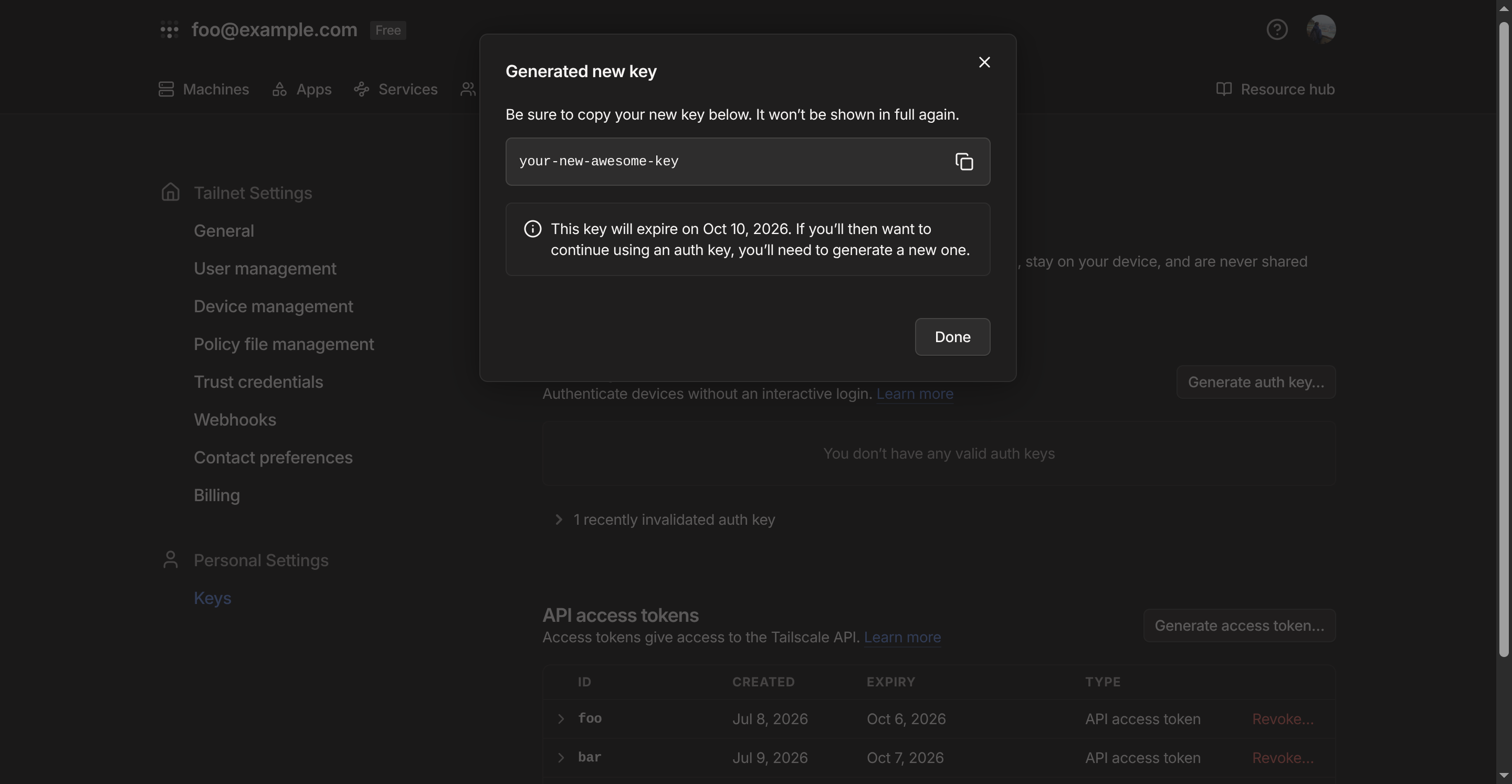
Make sure to note down your Tailnet ID and the new API token as we will need them in the next part.
Configure Tinyauth
Section titled “Configure Tinyauth”With your Tailnet ID and API token you can configure Tinyauth in the following way:
services: tinyauth: environment: - TINYAUTH_TAILSCALE_ENABLED=true - TINYAUTH_TAILSCALE_APITOKEN=your-api-token # TINYAUTH_TAILSCALE_APITOKENFILE also supported - TINYAUTH_TAILSCALE_TAILNET=your-tailnet-idTinyauth by default caches the user and device list for 5 minutes, you can reduce the cache duration with
TINYAUTH_TAILSCALE_CACHEDURATION (in seconds).
Make sure to restart Tinyauth after updating the configuration.
After restarting and assuming Tinyauth can get your client IP, you should see the following screen when visiting Tinyauth to login:
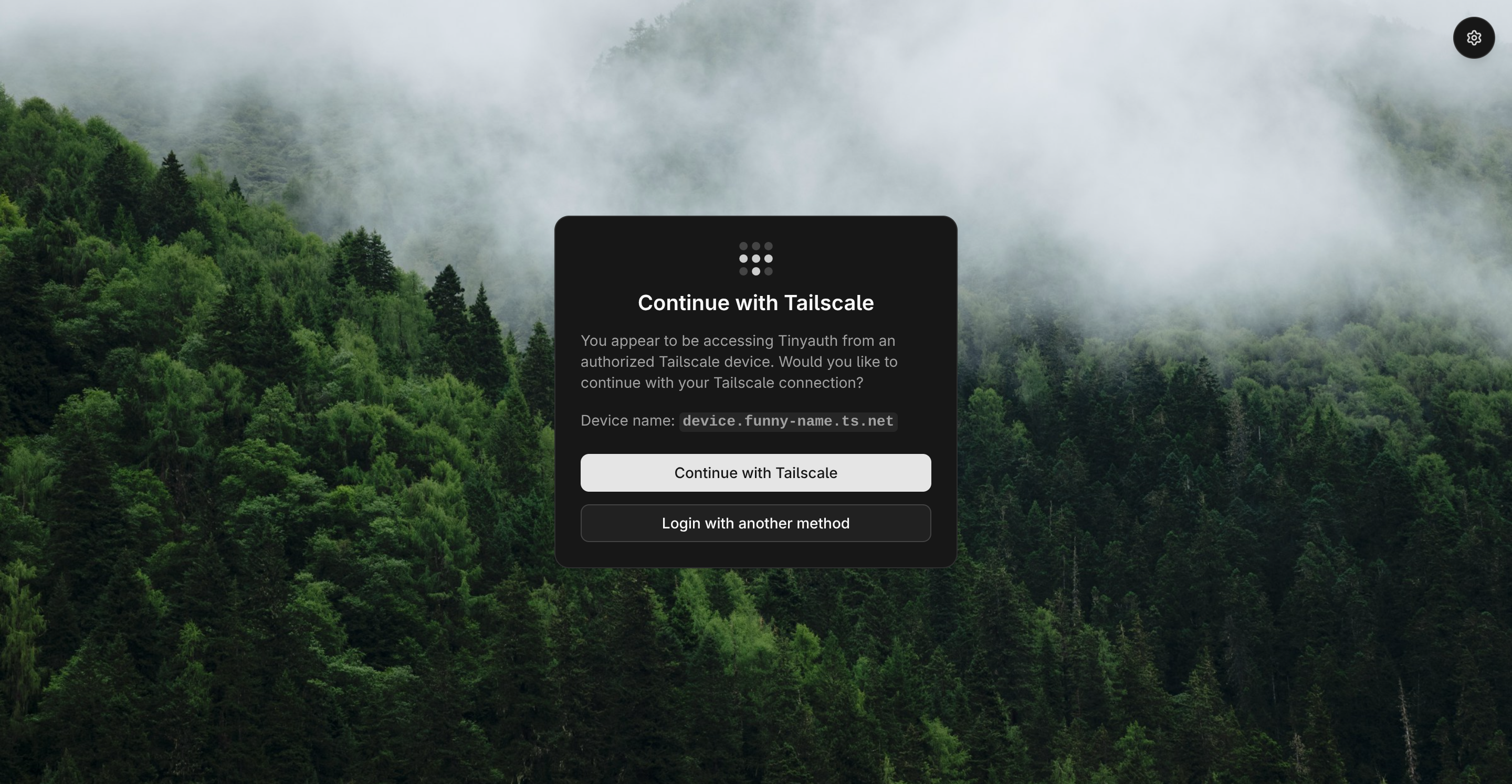
After clicking Continue with Tailscale, authentication should proceed as normal.